
How to Check Your Printer Ink Levels
Published by Go Inks on 9th Oct 2026
Wondering how much ink is left in your printer? Whether you're printing an important document at home or preparing paperwork for your business, checking your ink levels can help you avoid running out halfway through a print job.
Most modern inkjet printers let you check estimated ink levels through the printer's screen, your computer or a printer app. The exact steps depend on whether you have a Brother, Canon, Epson or HP printer, and whether your printer uses cartridges or refillable ink tanks.
In this guide, we'll explain how to check your printer ink levels, what to do if the levels aren't showing, and how to tell when it's time to replace a cartridge or refill an ink tank.
How Do I Check My Printer Ink Levels?
The quickest method is usually to check your printer's display or the printer software on your computer.
Try these steps first:
-
Turn on your printer and make sure it is connected to your computer or network if required.
-
Look for an ink, cartridge, maintenance or supplies option on the printer's screen.
-
If your printer doesn't have a suitable display, open its software or companion app on your computer or phone.
-
Look for an ink-level, estimated supply or cartridge-status indicator.
-
Check which colour is running low, rather than assuming all cartridges need replacing.
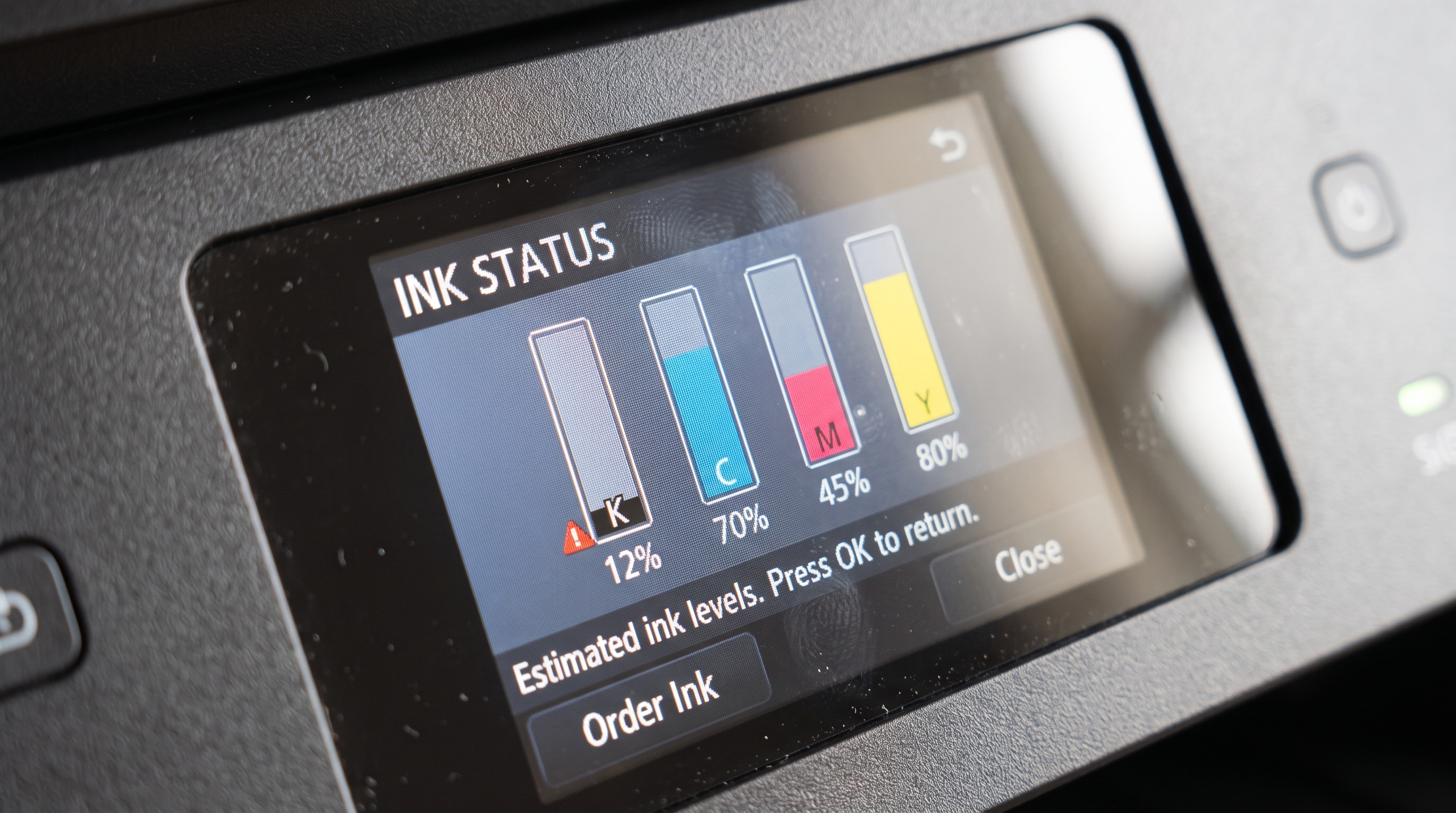
Some printers display estimated levels as bars or icons, while others show a low-ink warning only when a cartridge is approaching the end of its usable life.
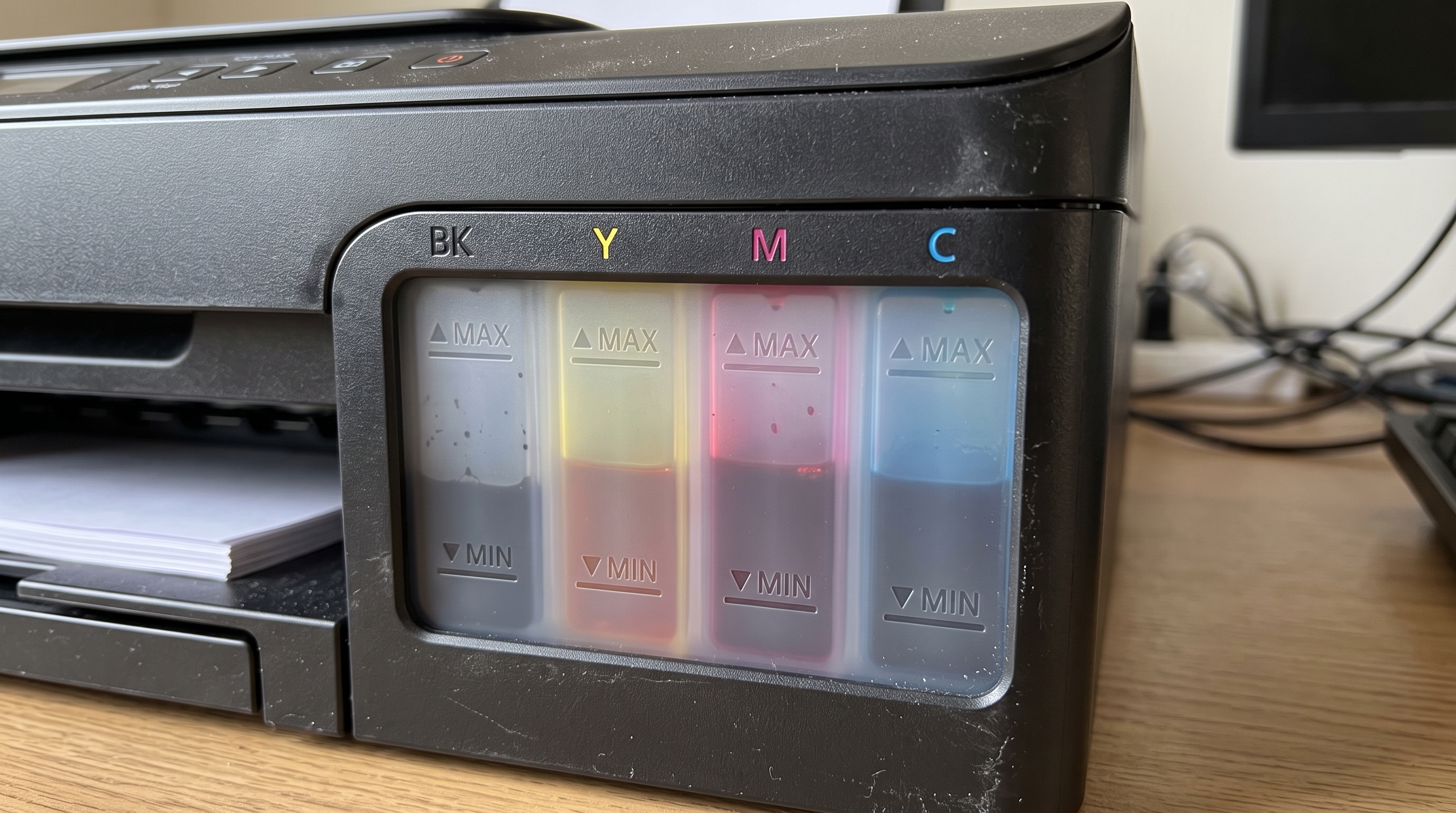
If your printer uses refillable ink tanks, you should also inspect the physical ink levels through the tank windows where available. Electronic readings may be estimates rather than a direct measurement of the ink remaining.
How to Check Ink Levels on a Brother Printer
Brother inkjet printers can provide ink-status information through the printer's control panel or the Brother software installed on your computer. The exact method depends on your model.
Method 1: Check the printer's display
-
Turn on your Brother printer.
-
Look for an Ink, Ink Management, Ink Volume or similar option in the menu.
-
Open the relevant screen and check the displayed ink levels.
-
Follow any on-screen instructions if a cartridge is running low.
Not every Brother printer uses the same menu names, so check your model's manual if you cannot find the option.
Method 2: Check using Brother software on Windows
On supported models:
-
Open the Start menu in Windows.
-
Search for and open Brother Utilities, if installed.
-
Select your printer model.
-
Open the relevant Status Monitor or printer-status utility.
-
Review the ink or supply information displayed.
Brother software and menu options can differ between printer models. If the utility is not available, check the support page for your exact printer model.
What if you have a Brother ink tank printer?
If your Brother printer uses refillable ink tanks, look through the tank windows to check the actual remaining ink. Brother's guidance for supported tank models recommends checking the visible ink level and refilling when it reaches the specified lower limit.
You can find model-specific guidance through Brother Support.
How to Check Ink Levels on a Canon Printer
Canon printers may display ink information on the printer's screen or through Canon's printer software.
Method 1: Check the printer's display
If your Canon printer has a screen:
-
Turn on the printer.
-
Open the setup, maintenance or ink-status menu.
-
Look for an ink-level indicator or cartridge-status message.
-
Check whether black or any of the colour cartridges are running low.
The names and location of these options vary between Canon PIXMA and other printer ranges.
Method 2: Check using Canon software on Windows
Depending on your printer and installed driver, you may be able to check ink status through the Canon printer software or printer-status monitor.
-
Open the Start menu.
-
Find your Canon printer or its installed printer utility.
-
Open the relevant status or maintenance tool.
-
Look for the ink-status information.
If you cannot find the option, visit Canon Support and search for your exact printer model.
Method 3: Check on a Mac
For supported Canon printers, you can check supply information through macOS:
-
Open the Apple menu.
-
Select System Settings, or System Preferences on older macOS versions.
-
Open Printers & Scanners.
-
Select your Canon printer.
-
Open Options & Supplies and look for Supply Levels, if available.
The exact labels depend on your macOS version and printer driver. Canon's instructions for supported PIXMA models describe this route for viewing ink status on a Mac.
How to Check Ink Levels on an Epson Printer
Epson printers may show ink levels on the printer's display or through Epson Status Monitor and other printer utilities.
Method 1: Check on the printer
If your Epson printer has an LCD screen:
-
Turn on the printer.
-
Open the ink, maintenance or status menu.
-
Look for the ink-level display.
-
Check the remaining level for each colour.
If your printer does not have a display, use the software method below.
Method 2: Check using Epson software on Windows
On supported models:
-
Open Settings in Windows.
-
Go to Bluetooth & devices, then Printers & scanners.
-
Select your Epson printer and open its printing preferences.
-
Look for the Maintenance or Utility tab.
-
Open Epson Status Monitor, if available, to view the estimated ink levels.
Some printers use different software or menu names. Epson's official instructions for supported models explain how to open Status Monitor through the printer driver.
Method 3: Check on a Mac
For supported Epson printers:
-
Open the Apple menu.
-
Select System Settings or System Preferences.
-
Open Printers & Scanners.
-
Select your Epson printer.
-
Open Options & Supplies, then look for Utility or the printer utility.
-
Open Epson Status Monitor if it is available.
For more detailed instructions, visit Epson UK Support.
What if you have an Epson EcoTank printer?
Epson EcoTank printers use refillable ink tanks rather than conventional ink cartridges.
Look through the tank windows and check that each colour is above the minimum line marked on the tank. Do not rely only on the estimated level shown by the printer software.
Epson advises users of supported tank models to inspect the actual ink level and follow the printer's instructions for refilling. Running a tank below its specified minimum can risk print-quality problems or damage.
How to Check Ink Levels on an HP Printer
HP printers may show estimated ink levels through the printer's display, the HP app or the printer software installed on your computer.
Method 1: Use the HP app
For supported printers:
-
Open the HP app on your computer or mobile device.
-
Select your printer if more than one is listed.
-
Look for the estimated ink or supply levels.
-
Check whether any cartridge is low or needs replacing.
The levels may take a short time to appear after opening the app.
Method 2: Check through Windows printer software
Depending on your HP printer and installed software:
-
Open the Start menu.
-
Search for your printer or HP printer software.
-
Open HP Printer Assistant or the relevant printer utility if available.
-
Look for Estimated Levels or supply information.
Some HP printers use different utilities, so the menu options may not match these instructions exactly.
Method 3: Check on a Mac
For supported HP printers:
-
Open the Apple menu.
-
Select System Settings or System Preferences.
-
Open Printers & Scanners.
-
Select your HP printer.
-
Open Options & Supplies and look for the Supply Levels tab, if available.
What if you have an HP Smart Tank printer?
HP Smart Tank printers use refillable ink tanks. Check the physical ink levels through the tank windows and keep them between the minimum and maximum fill lines specified by HP.
For model-specific instructions, visit HP Support.
Can I Check My Printer Ink Levels Without a Computer?
Yes, if your printer supports checking ink status directly.
Try these options:
-
Printer display: Look for an ink, cartridge or supplies menu.
-
Ink tank windows: If your printer has refillable tanks, inspect the visible levels.
-
Mobile app: Use the printer manufacturer's app if your model supports it.
-
Low-ink warning: Check the message displayed when you print or when the printer is switched on.
Some simpler printers do not have a display or provide detailed level readings. In that case, you may need the manufacturer's software or app.
Why Are My Printer Ink Levels Not Showing?
If your computer or printer does not display the ink levels, there are several possible reasons.
1. The printer software is missing or outdated
Some printers need the manufacturer's software or driver to display supply information.
Visit the manufacturer's support website, search for your exact printer model and check whether suitable software or drivers are available for your operating system.
2. Your printer is not connected properly
Check that the printer is switched on and connected to your computer or network. If you use Wi-Fi, confirm that the printer and computer can communicate.
3. Your printer does not support electronic level monitoring
Some models offer only basic status messages rather than a detailed ink-level display.
If your printer has refillable tanks, inspect the visible ink level as well.
4. A cartridge is not recognised
If the printer cannot identify a cartridge correctly, its estimated level may not appear. Check that the cartridge is installed properly and that it is the correct type for your printer.
5. The displayed levels are only estimates
Ink-level readings are not always exact. HP notes that estimates may be less accurate with some non-original, refilled or remanufactured cartridges, and when certain other conditions apply.
If the displayed level seems inconsistent with the printer's behaviour, consult your printer's instructions rather than relying on the number alone.
How Do I Know When My Printer Ink Is Running Low?
Your printer may warn you when one or more cartridges are running low, but there are other signs to look out for.
These include:
-
A low-ink or replace-cartridge message
-
Faded text or images
-
Missing colours in printed documents
-
Streaks or uneven colour
-
A cartridge-status indicator showing very little ink
Poor print quality does not always mean a cartridge is empty. Blocked print nozzles, incorrect settings, paper problems or other printer issues can produce similar symptoms.
If your prints look poor despite apparently sufficient ink, consult your printer's troubleshooting instructions before immediately replacing every cartridge.
Should I Replace My Cartridge as Soon as the Printer Says Ink Is Low?
Not necessarily. A low-ink warning generally indicates that you should prepare a replacement, but the point at which you need to change the cartridge depends on the printer and its instructions.
Some printers allow you to continue printing after a low-ink warning, while others may stop or restrict printing when a cartridge is considered empty.
Check the instructions for your exact model and avoid continuing to print if the manufacturer warns that doing so could damage the printer.
If you have an important print job coming up, keeping a suitable replacement cartridge ready can help prevent interruptions.
How Do I Check Ink Levels on a Refillable Ink Tank Printer?
If your printer uses refillable ink tanks, checking the physical ink level is particularly important.
Unlike a conventional cartridge, the tank is built into the printer and refilled from an ink bottle.
To check it:
-
Locate the ink tanks and their viewing windows.
-
Check each colour separately.
-
Compare the visible ink with the minimum and maximum lines.
-
Follow the manufacturer's instructions if any tank reaches its minimum level.
-
Use only the correct ink type and bottle reference specified for your printer.
Electronic readings on tank printers may estimate ink consumption rather than directly measuring the remaining liquid. This is why checking the visible level matters.
Never fill a tank beyond its maximum line.
What Should I Do If My Printer Is Running Low on Ink?
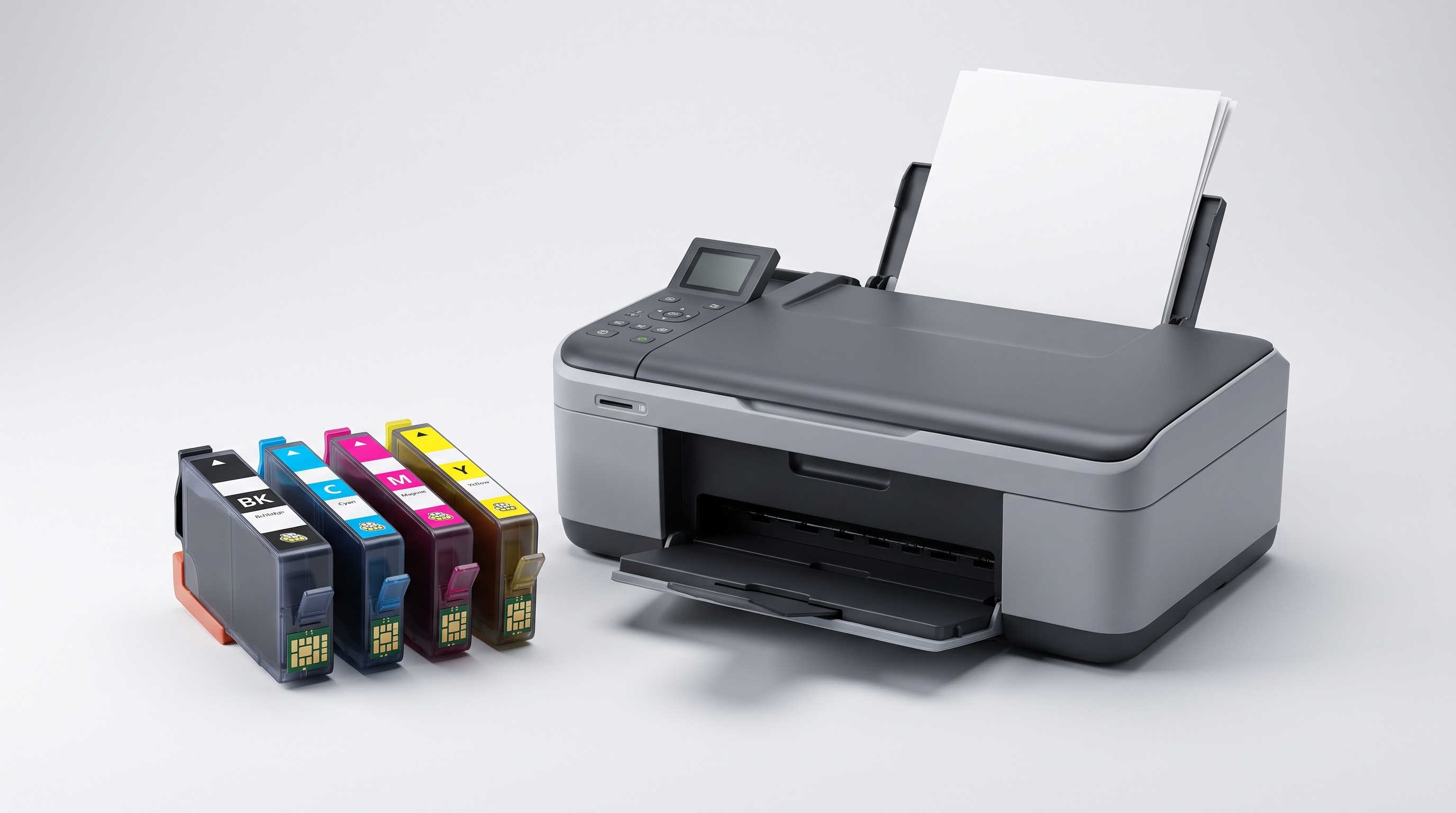
Once you know which cartridge or colour is running low, identify the correct replacement before ordering.
Check the following:
-
Printer model: Find the complete model number on your printer.
-
Cartridge reference: Check the number on the existing cartridge or in your printer's documentation.
-
Colour: Confirm whether you need black, cyan, magenta, yellow or another specified cartridge.
-
Compatibility: Make sure the replacement is listed as suitable for your exact printer model.
-
Capacity: Compare standard and XL options, if both are available.
-
Cartridge or bottle: Confirm whether your printer uses conventional cartridges or refillable ink bottles.
Do not select a replacement based on the printer brand alone. Different models from the same manufacturer can use different cartridge families.
Where Can I Find Replacement Ink Cartridges?
If your printer is running low, Go Inks offers compatible ink cartridges for selected Brother, Canon, Epson and HP printers.
You can browse the ink cartridge range by brand or series, or use your printer model and cartridge number to help identify a suitable replacement.
Before ordering, check the product's compatibility information to make sure it matches your printer.
If you have a refillable ink tank printer rather than a conventional cartridge-based model, you may need an ink bottle instead.
Frequently Asked Questions
How often should I check my printer ink levels?
Check whenever you are preparing for an important print job or notice a low-ink warning. If you print frequently, checking occasionally can help you keep replacement supplies ready.
Can I check ink levels from my phone?
Yes, if your printer supports a manufacturer's mobile app that displays supply information. The available features depend on your printer model and app.
Why does my printer say the ink is low when I can still print?
Ink-level indicators are estimates, and a low warning may appear before a cartridge is completely empty. Follow your printer's instructions and prepare a replacement when the warning appears.
Why are my ink levels not showing on my computer?
The printer may require the manufacturer's software or driver, the connection may not be working correctly, or your model may not support detailed level readings. Check the manufacturer's instructions for your exact printer.
Can I check ink levels without removing the cartridge?
Usually, yes. Most supported printers display estimated levels through their control panel, software or app. Refillable ink tank printers should also be checked visually through the tank windows.
Do ink tank printers show accurate ink levels?
Not always. Some systems estimate the remaining ink based on usage. Checking the physical tank level is important, and you should follow the minimum and maximum marks shown on your printer.
Can I keep printing when the ink is low?
Some printers allow printing after a low-ink warning, while others may restrict printing when a cartridge is considered empty. Follow your model's instructions, particularly if the printer warns against continued use.
Does poor print quality always mean my ink is empty?
No. Faded prints, streaks or missing colours can be caused by low ink, but they can also result from blocked nozzles, settings or other issues. Check the ink status and follow your printer's troubleshooting guidance.
How do I know which replacement cartridge to buy?
Identify your exact printer model, check the cartridge reference and confirm that the replacement is listed as compatible. You should also check the colour and capacity before ordering.